Services
Data backup, backup configuration
Data backups are essential for protecting an organization’s information from loss due to technical failures, user errors, viruses, or cyberattacks. Without backups, a company risks losing accounting databases and valuable documents, missing deadlines, and incurring financial losses.
Why backups are necessary
1.Data archiving software such as Acronis True Image (or similar backup software). Can be installed on both servers and workstations.
- Protection against technical failures. Hard drives, servers, and cloud services can fail. A backup allows for data recovery without losses.
- Prevention of human error consequences. Employees may accidentally delete or modify important documents. A backup provides the ability to roll back changes.
- Protection against viruses and cyberattacks. Ransomware and malware block access to data. With a backup, the system can be restored without paying a ransom.
- Business risk reduction. Losing an accounting database or client data can lead to fines, breached contracts, and loss of customer trust.
How to organize data backup
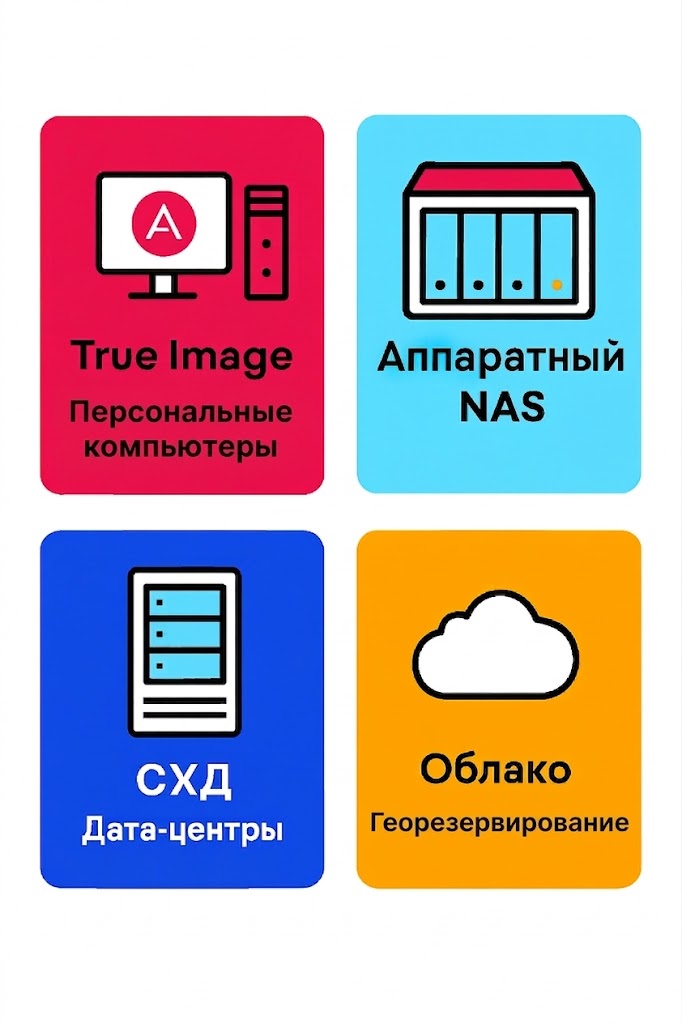
To set up data redundancy in an organization, it is necessary to use special hardware and software tools. These are selected individually for each case. Here are the main typical solutions:
1. Archiving software like Acronis True Image (or similar backup software). It can be installed on both servers and workstations.
- Suitable for data from personal computers (PCs), laptops, workstations, and servers.
- Creates full disk images and allows for quick “as-is” system recovery.
- Convenient for small businesses or individual employees where simplicity is important.
- Used when individual devices need protection. The ability to “roll back” the system after a failure is vital. No complex infrastructure is present.
2. Solution using hardware NAS (network-attached storage). NAS (Network Attached Storage) is a specialized server connected to the local network that provides centralized storage and file access for multiple users simultaneously. It is used in organizations for convenient data exchange, backup, and collaboration.
- Suitable for small and medium-sized companies.
- Data is stored locally, with access being fast enough within the limits of the LAN speed.
- Usually, a NAS is supplied without HDDs. The required capacity and number of HDDs are selected individually for each case.
- It is possible (and even recommended) to configure RAID, “snapshots,” and backups from PCs and servers.
- Used when a centralized data storage is required without consuming the disk space of existing systems.
3. SAN (Storage Area Network, enterprise-level). Used in large companies and data centers where data access speed is critical.
- Supports SAN, iSCSI, Fibre Channel, and scaling up to hundreds of TB and PB.
- High fault tolerance, integration with virtualization (VMware, Hyper-V).
- Used when there are many servers and virtual machines, where high performance and reliability are critical, and where a centralized enterprise-level infrastructure is required.
4. Cloud services (Azure, AWS, Google, local providers). Universal, flexible, requires no on-site hardware.
- Subscription-based payment, easily scalable.
- Access from anywhere in the world.
- Used when geographic redundancy (off-site backup) is required. Important for flexibility and a quick start without initial capital expenditures, or when there are distributed teams and branches.
- Cons: relatively low speed, dependence on the internet and service plans, long upload times for large volumes, and economically disadvantageous in the long term.
How often to perform backups
Backup timing is selected individually for each specific case. Here are the general recommendations:
- Daily – for accounting databases and critical systems.
- Weekly – for less dynamic data.
- Before updates – always save a copy before installing new versions of 1C, OS, and other software..
Practical recommendations for enterprises
- Choose the right data backup solutions.
- Set up automated backups (using scripts or built-in tools).
- Store copies in different locations (e.g., server + cloud).
- Regularly check the integrity of copies (test restoration).
- Restrict access to backups to administrators only.
Our specialists will help you choose the most suitable option for your organization. After that, they will implement any of these options and provide qualified technical maintenance in the future.